Every discipline in one project
Start with a reference and comparison plan. Add mechanical, electrical or other PDFs. Name each plan and choose the relevant page.
 LayerVista
Align architectural, mechanical and electrical plans. Switch between them at the same position and check every detail.
Phone, tablet or computer. Start with a PDF.
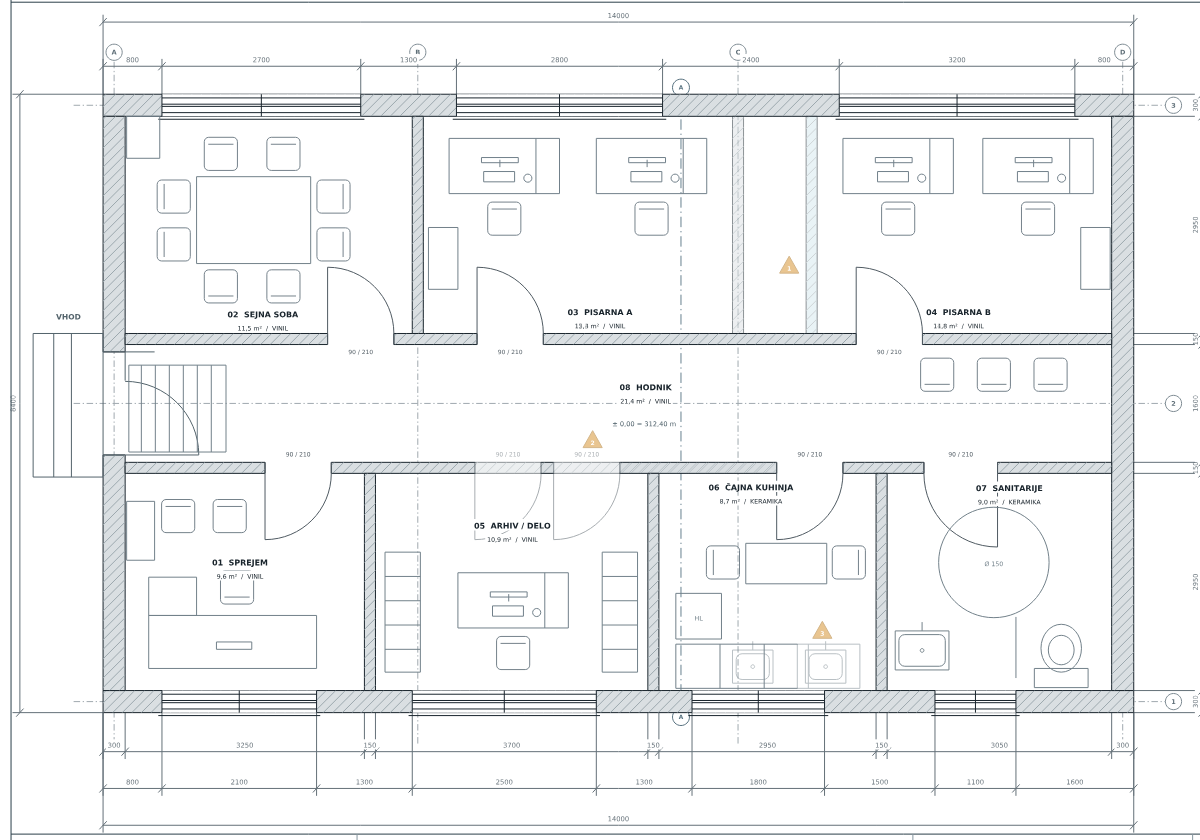
Start with a reference and comparison plan. Add mechanical, electrical or other PDFs. Name each plan and choose the relevant page.
Try automatic alignment or select three pairs of matching points. Zoom into a detail and move the plan under the crosshair.
Switch plans while keeping the same zoom and position. On desktop, press 3 for an overlay and adjust its opacity.
Use the same LayerVista email and password on each device. PDFs and alignments save to the cloud, while a local copy keeps your work available offline.
How do I move my work?Open in a browser or install in its own window. A local package is also available to run without the hosted site.
Open the app in Safari, choose Share, then Add to Home Screen. The App Store version is in preparation.
Open the app in Chrome and choose the install option. The Google Play version is in preparation.
LayerVista works with 2D PDF plans, including scanned sheets. Upload your own plans or open the built-in BREZA sample project.
Automatic alignment is a suggestion. Check shared grids and corners. Manual alignment uses three pairs of points to adjust position, rotation and uniform scale. Unevenly stretched scans may still have differences.
Add architectural, mechanical, electrical and other PDF plans to your project. Group matching views into sets and switch between their plans. Overlay view shows the reference and one comparison plan.
The app saves local copies on your device. When signed in, PDFs and alignments also save to your Supabase cloud account. Use the same LayerVista email and password on your other devices and check the save status before switching.
Removing the app or browser data may delete local data. Check cloud saving and export a backup first. The backup contains PDFs and alignments; store it somewhere you trust.
A web beta is currently available to users with access. App Store and Google Play releases are still in preparation. You can already add the web app to your home screen.